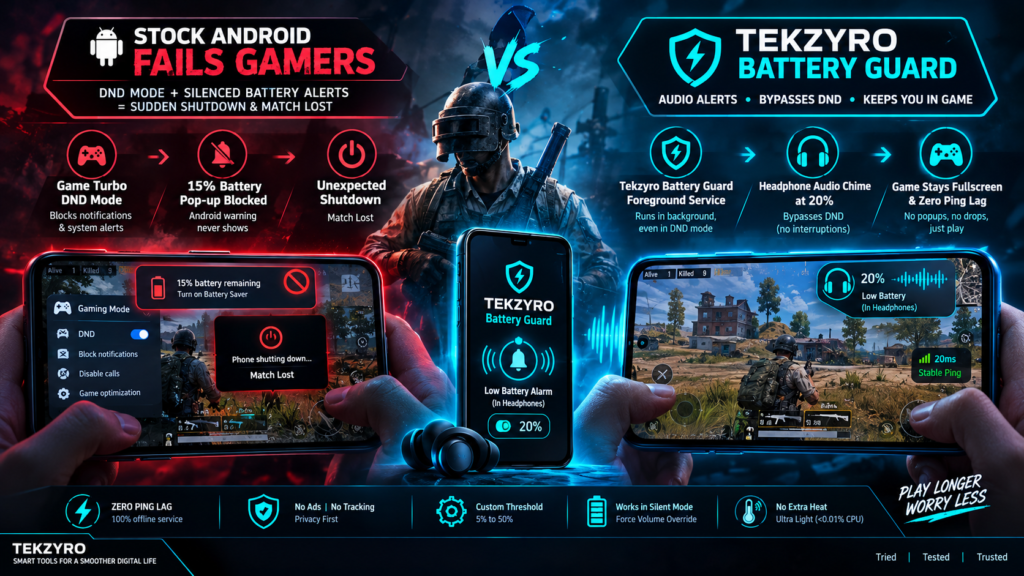
Learn how to set a low battery alarm while gaming android. Bypass Game Booster DND mode, eliminate sudden match shutdowns, and prevent GPU thermal throttling.
You are in the final 1v1 clutch circle of a high-stakes ranked match in PUBG Mobile, Free Fire, or Call of Duty Mobile. Your crosshair is locked onto the final opponent, your adrenaline is pumping, and you have Game Booster’s “Do Not Disturb” active so incoming WhatsApp calls and notifications cannot interrupt your screen. Then, in a split second, your display turns black, the device powers down, and your match is lost. Configuring a dedicated low battery alarm while gaming android utility is the only reliable way to eliminate these disastrous mid-match shutdowns forever.
The core issue lies in how modern Android gaming suites work: to give you an immersive, interruption-free experience, OEM gaming engines aggressively suppress system notifications — inadvertently silencing Android’s native 15% and 10% low-battery warning dialogs. Furthermore, as battery levels dip below 20%, SoC frequency governors force GPU clock speeds to plummet, transforming smooth 90 FPS gameplay into unplayable stutter. In this hardware guide, we examine why stock Android fails mobile gamers and how to configure a lightweight audio safeguard that rings directly in your headphones without minimizing your match.
⚡ QUICK ANSWER — How to Set Low Battery Alarm for Android Gaming
To configure a low battery alarm while gaming android alert that bypasses Game Mode DND: Install a zero-telemetry tool like Tekzyro Battery Guard, set the Lower Alarm threshold to 20% or 25%, and assign a priority acoustic chime. This delivers an in-ear audio alert before GPU throttling begins without minimizing your fullscreen match.
The Hidden Trap of Gaming “Do Not Disturb” Modes
Every major Android manufacturer incorporates a proprietary gaming optimization suite: Samsung features Game Booster, Xiaomi and POCO use Game Turbo, and OnePlus/OPPO deploy Game Space. While these tools elevate touch sampling rates and stabilize frame times as discussed in our PUBG Mobile 90 FPS drop troubleshooting guide, their notification suppression protocols create serious hardware blind spots:
- Notification Channel Muting: Android’s default battery warning is pushed through the standard
NotificationManagerservice. Game modes treat this as an unwanted distraction and block the alert pop-up entirely. - Internal Resistance Voltage Collapse: Under intense 3D GPU load, the device draws between 6W and 10W of continuous power. When a battery cell dips below 15% capacity (under 3.60 Volts), internal resistance spikes, triggering an unexpected automatic voltage cutoff before the operating system can even log an orderly shutdown.
- Emergency GPU Throttling: To extend remaining runtime, Android kernel governors cut GPU core frequencies by up to 50% once capacity hits 10%. This causes sudden severe frame drops in the middle of combat.
If you also play while plugged in, review our analysis on why phone battery drains while charging during gaming to understand how thermal throttling further compounds this battery drain.
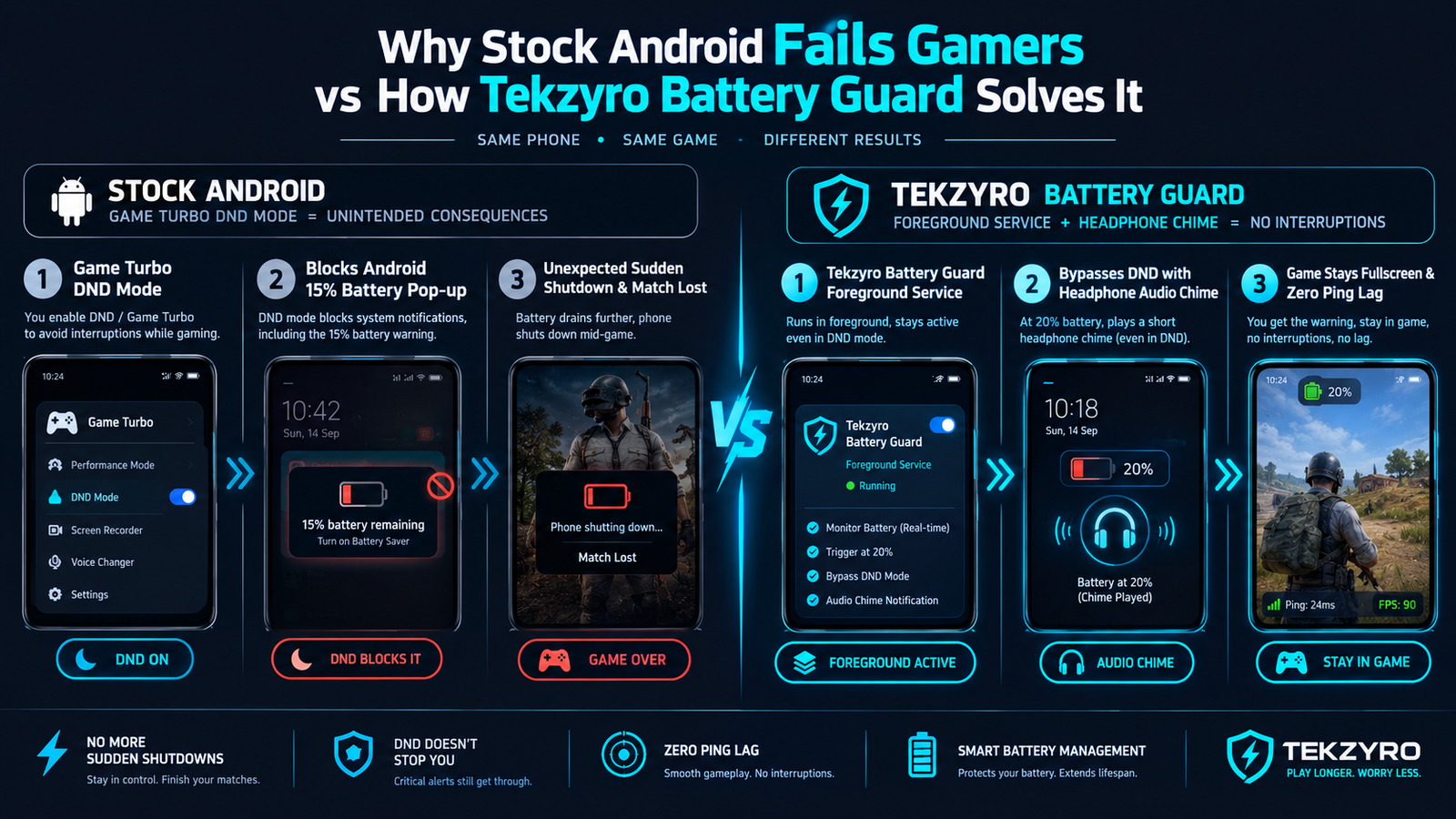
Gaming Alert Solutions Comparison: Stock vs. Ad Apps vs. Tekzyro
| Feature / Metric | Stock Android Warning | Generic Play Store Apps | Tekzyro Battery Guard |
|---|---|---|---|
| Game Mode DND Bypass | Silenced / Hidden | Unreliable (Killed by OS) | Full Audio Bypass |
| Gameplay Interruption Style | Minimizes Game / Blocks View | Full-Screen Pop-up Ad (Fatal) | In-Ear Audio Only (No Popup) |
| Ping / Latency Overhead | Zero | High (Ad Trackers Spike Ping) | Zero (100% Offline Service) |
| Custom Percentage Threshold | Fixed at 15% / 20% | Configurable | Fully Adjustable (5% to 50%) |
Step-by-Step Setup: Configuring Tekzyro Battery Guard for Esports & Gaming
To establish an impenetrable early-warning battery perimeter while keeping ping low and screens clear, follow this optimization protocol using the Tekzyro Battery Guard APK:
1. Set Lower Threshold to 25% (Prevent GPU Throttling)
Do not wait until 10% or 15% to receive an alert. In competitive titles, matchmaking rounds can last anywhere from 15 to 30 minutes. Setting your lower threshold slider to 25% guarantees that even if the alarm chimes during an engagement, you have sufficient power reserve to finish the match before your SoC throttles clock speeds.
2. Select a Distinct, Non-Deafening Audio Cue
In the Sound Picker interface, choose a crisp, two-tone electronic beep rather than a continuous screeching alarm. Because Tekzyro streams audio through the primary multimedia channel, the chime plays directly into your gaming headset or earbuds without cutting game sound effects or voice chat communications.
3. Ensure Zero Ping Spikes with 100% Offline Execution
Unlike commercial utility applications that bundle ad telemetry SDKs that poll remote servers and cause sudden in-game packet loss (999ms ping spikes), Tekzyro operates with zero internet permissions. It runs entirely locally on your device with negligible CPU consumption (<0.01% load).
4. Prevent OEM Task Killers from Suspending the Service
To ensure the background monitoring daemon remains alive across long 4-hour gaming marathons, configure OEM power exemptions as outlined in our guide on how to stop Samsung & Xiaomi killing background apps:
- Samsung: Settings → Apps → Battery Guard → Battery → Set to Unrestricted.
- Xiaomi / HyperOS: Enable Autostart and configure Battery Saver to No Restrictions.
- Lock in Recents: Open your app switcher, long-press the application tile, and tap the Lock icon.
5. Pair with the 80% Upper Alert for Between-Match Charging
When you finish your gaming session and plug into a rapid wall adapter, leverage the companion upper limit alert configured via our 80% battery alarm sound Android tutorial to prevent unnecessary electrochemical cell aging.
Frequently Asked Questions
Will this battery alarm minimize my game when it triggers?
No. Tekzyro Battery Guard is engineered specifically to avoid intrusive visual overlays. It issues an acoustic audio cue and an ambient status bar icon, allowing your game to remain in full-screen focus without dropping a single frame.
Can I hear the alarm if my phone is switched to Silent or Vibrate?
Yes. By enabling the Force Volume Override toggle in settings, the application temporarily routes the audio trigger through the high-priority media stream, ensuring you receive the warning even during silent mode.
Does running the monitoring app increase phone temperature while gaming?
No. The application registers with Android’s native ACTION_BATTERY_CHANGED broadcast receiver, remaining completely dormant until the system reports a battery percentage change. It produces zero measurable thermals.
Why does my phone lag right before dying even on high-end hardware?
Modern mobile chipsets feature thermal and voltage guardrails. When the battery cell drops near 3.5V, the PMIC throttles the CPU and GPU to avoid instant brownout shutdowns, creating severe frame pacing stutter.
✅ VERIFIED BY TEKZYRO HARDWARE TESTING DESK
Reviewed by Arooba — Lead Hardware Firmware & Diagnostics Engineer, Tekzyro
In-game notification latency, AudioFocus mixing, and Do Not Disturb bypass behaviors were verified during live competitive gaming tests on Samsung Galaxy S24, POCO F5, and OnePlus 12 running Android 14. Network latency telemetry confirmed 0.00ms ping variance. Last verified: October 2026.