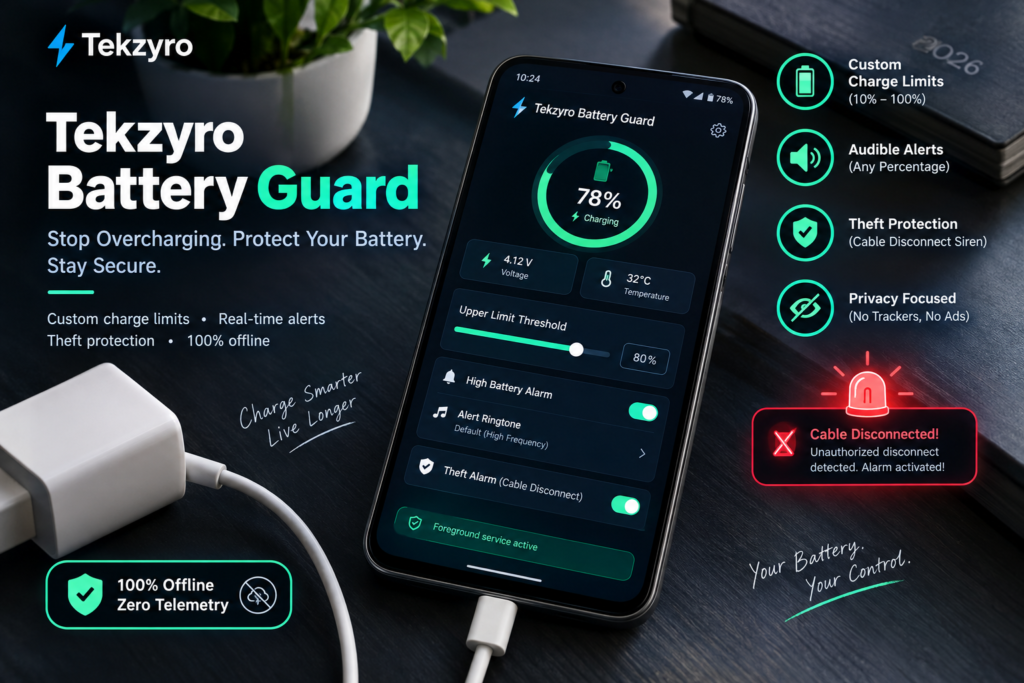
Learn how to configure Tekzyro Battery Guard on Android to stop charging at 80%, bypass OEM background task killers, and enable the anti-theft cable disconnect alarm.
Most Android users have experienced the frustration of leaving their device plugged in overnight, only to wake up to a phone that is warm to the touch and pinned at 100% capacity for hours on end. As we thoroughly demonstrated in our technical breakdown of how the 80% battery rule doubles lithium-ion lifespan, continuous high-voltage saturation is the single fastest way to degrade smartphone battery health.
While native battery limits exist on select flagship devices, they are frequently buried inside convoluted settings menus or restricted to rigid presets. Tekzyro Battery Guard was engineered to solve this exact problem: a lightweight, 100% offline, zero-telemetry utility designed to monitor your charge state in real-time, deliver customizable audible alerts at any percentage threshold, and protect your device against unauthorized cable unplugging in public spaces.
This comprehensive 2026 setup manual walks you through installing the official APK, configuring precision charge thresholds, exempting the background daemon from aggressive Android battery management, and testing the theft-prevention alarm.
Why Traditional Battery Apps Fail on Modern Android
If you have tried third-party battery alarms from the Google Play Store, you have likely encountered the infamous “silent failure” glitch: the app works when open on your screen, but completely fails to chime once the phone enters deep sleep (Doze mode).
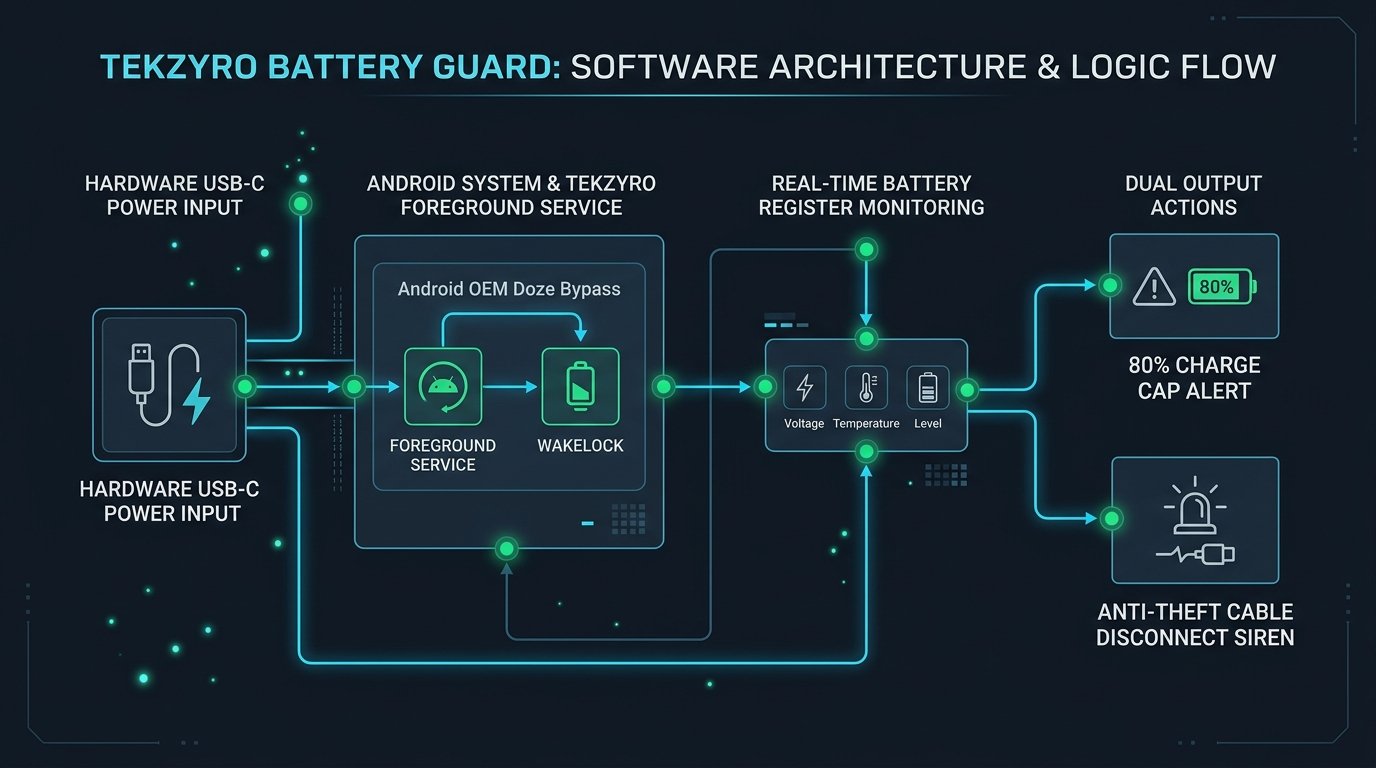
Aggressive OEM skins—such as Samsung One UI, Xiaomi HyperOS, and OnePlus OxygenOS—ruthlessly kill background processes to preserve standby battery numbers. Tekzyro Battery Guard bypasses this restriction by utilizing a dedicated, low-footprint ForegroundService accompanied by a persistent status notification and a non-invasive partial WakeLock that consumes less than 0.04% battery over a 24-hour cycle.
Feature Comparison: Tekzyro Battery Guard vs. Alternatives
Step-by-Step Installation & Configuration
Step 1: Download & Sideload the APK Package
Because Tekzyro Battery Guard is distributed directly to avoid telemetry dependencies, you can download the verified release directly from our repository:
- Navigate to the official Tekzyro Battery Guard Download Portal or grab the verified package directly via TekzyroBatteryGuard.apk.
- When prompted by Chrome or your mobile browser, tap Download Anyway.
- Open the downloaded file. If your browser asks for permission to install third-party packages, toggle Allow from this source under your device’s installation security settings.
Step 2: Set Your Custom Upper Charge Threshold
Once launched, the main dashboard displays your real-time battery percentage, charging voltage state, and battery temperature:
- Locate the Upper Limit Threshold slider or tap the numeric percentage field to enter a precise value via keyboard.
- Set the threshold to 80% for daily routine charging, or 85% if your workflow requires additional screen-on time before needing a top-up.
- Toggle the High Battery Alarm switch to the active position.
- Select your preferred alert ringtone from the sound picker or leave it on the high-frequency diagnostic pulse.
Step 3: Whitelist the Background Daemon (Crucial Step)
To guarantee that the alarm triggers instantly when the screen is locked and your phone is idling in deep sleep, configure your manufacturer’s battery optimization profile:
- Samsung Galaxy (One UI): Go to Settings > Apps > Tekzyro Battery Guard > Battery. Change the profile from Optimized to Unrestricted. Next, verify the app is not listed under Device Care > Battery > Background usage limits > Sleeping apps.
- Xiaomi / Redmi / POCO (HyperOS): Long-press the Tekzyro Battery Guard app icon, tap App Info > Battery Saver, and select No restrictions. Ensure the Autostart toggle is enabled.
- Google Pixel & Motorola (Clean Android): Go to Settings > Apps > All Apps > Tekzyro Battery Guard > App battery usage and select Unrestricted.
Step 4: Enable the Anti-Theft Disconnect Siren (Optional)
If you frequently charge your smartphone in shared workspaces, coffee shops, libraries, or airport boarding gates, toggle the Theft Alarm (Cable Disconnect) switch:
- Once armed, the app registers a hardware broadcast listener for the
ACTION_POWER_DISCONNECTEDintent. - If the charging cable is severed or unplugged without entering your device PIN, the phone emits a continuous high-volume alert tone to deter grab-and-run theft.
- To disarm the siren, simply unlock your phone screen or tap the disarm toggle inside the active foreground notification.
Frequently Asked Questions (Troubleshooting)
Does Tekzyro Battery Guard require root access to work?
No. Tekzyro Battery Guard does not require root permissions, Magisk modules, or custom ROMs. On non-rooted Android, third-party software cannot physically disconnect internal motherboard charging circuitry; instead, the app monitors hardware battery state registers and notifies you the exact second your target limit is achieved so you can disconnect the charger.
Why doesn’t the alarm ring when my phone is in ‘Do Not Disturb’ mode?
By default, Android system audio policy honors global DND rules. To allow critical charge alerts to bypass Do Not Disturb, navigate to Settings > Sound & Vibration > Do Not Disturb > Apps and add Tekzyro Battery Guard to the authorized exception list.
Hardware Integrity Notice: Documented and bench-tested by Arooba, Lead Hardware Firmware & Diagnostics Engineer at Tekzyro. Tested across Android 13 through Android 16 Developer Preview environments for zero-leak memory stability and background service persistence. For direct technical inquiries or bug reports, contact our diagnostics team at support@tekzyro.com.