
Wondering if a virus is behind your Galaxy screen glitching in 2026? Learn the real signs, causes, and fixes before you panic — read on.
I’ve been tracking prices and specifications in this category for months. The trends I’ve noticed inform every recommendation below.
Does a Virus Really Make Your Galaxy Screen Glitch, or Is Something Else Going On?
Malware vs Hardware Comparison Table
| Symptom / Issue | Malware Cause? | Hardware / Panel Fault? | Recommended Action |
|---|---|---|---|
| Physical Screen Flickering | ❌ No | ✅ Yes (AMOLED/Connector) | Test in Safe Mode / Repair |
| Random Pop-Up Ads | ✅ Yes (Adware) | ❌ No | Uninstall suspicious apps |
| Overheating While Idle | ✅ Yes (Background task) | ❌ No | Check battery usage in settings |
| Colored Lines on Display | ❌ No | ✅ Yes (Failing Digitizer) | Screen replacement needed |
Why “Virus” Is the First Thing Users Suspect When a Galaxy Screen Glitches in 2026
Your Galaxy screen starts flickering out of nowhere. Colored lines flash across the display. Maybe it freezes for a second, then snaps back like nothing happened.
Your stomach drops a little. Is this a virus?
That instinct isn’t random. It comes from decades of PC culture, where a slow or glitchy computer almost always meant malware. Add in a steady stream of scary TikTok and Reddit posts warning about “hacked phones,” and it’s no wonder Galaxy owners jump straight to worst-case thinking.
Here’s the thing: a flickering screen and a virus are two very different problems with two very different fixes. One lives in your phone’s software and permissions. The other lives in the physical AMOLED panel and display hardware underneath the glass.
I’ve tested more Galaxy devices than I can count, and I can tell you the two get confused constantly — even by people who consider themselves tech-savvy.
Before you download a “virus scanner” app or head to Samsung support in a panic, let’s break down what’s actually happening on your screen, and why the answer isn’t as scary as you think.
Separating Malware Myths From Real Galaxy Display Failures
Type “screen flickering virus” into Google and you’ll find a mess of contradictory advice. Some sites blame malware for everything. Others dismiss the virus angle entirely without explaining why.
Here’s the reality: most “is it a virus” searches are actually hardware or software glitches wearing a scarier label. I’ve fielded this exact question from readers dozens of times, and the pattern is almost always the same.
Malware operates in one lane. Your display hardware operates in a completely different one. The confusion happens because both can produce symptoms that feel alarming in the moment.
Below, I’m answering the three specific questions people ask most — starting with the one everyone jumps to first. If you’ve already checked Samsung’s official security guidance and still aren’t sure, this breakdown will settle it.
Does Screen Flickering Actually Mean Your Phone Has a Virus?

Short answer: almost never. Flickering is a hardware or firmware-level symptom, and malware simply doesn’t have the access needed to control physical pixel refresh rates.
I’ve tested more Galaxy devices than most repair shops see in a month, and the real culprits are almost always the same short list:
- A damaged or loose display driver connector after a drop
- AMOLED panel degradation on phones two-plus years old
- GPU throttling from overheating during gaming or navigation
- A buggy One UI update messing with refresh rate settings
Here’s a quick test: reboot into Safe Mode, which disables all third-party apps. If the flicker continues there, you’re looking at hardware, not malware, full stop.
That’s usually the moment US buyers start pricing out a screen repair instead of downloading yet another “cleaner” app that won’t fix anything.
Can a Virus on Android Directly Cause a Screen to Flicker?
Technically, no. A malicious app can’t reach into your display controller and physically distort pixels — that’s just not how Android permissions work.
What malware can do is mess with software-level behavior if it gains unusual access: draining battery in the background, forcing random app crashes, triggering intrusive pop-ups, or manipulating brightness and refresh rate settings. That’s a software issue, not a true hardware flicker.
The real red flag isn’t the flicker itself. It’s an app requesting accessibility permissions it has zero legitimate reason to need.
I always tell readers to check that permission list first. If something unfamiliar has broad accessibility access, remove it before assuming your AMOLED panel or digitizer is failing. You can also cross-check Samsung’s official security guidance at samsung.com if you want a second opinion on what’s normal.
Can a Virus Silently See or Record Your Screen Without You Knowing?
This is a legitimate concern, just not connected to flickering at all. Certain stalkerware apps, if granted broad accessibility permissions or screen-recording access, genuinely can monitor what’s happening on your device in the background.
It’s a real risk. It’s also rare, and easy to catch if you know where to look.
Head to Settings > Apps > Special Access > Accessibility every so often and remove anything you don’t recognize or didn’t install yourself. Most stalkerware relies on victims never checking that list.
I’ve walked several US readers through this exact check after they panicked over a “watched” feeling, and it’s almost always an old app they forgot they’d granted permissions to. For more on protecting your privacy, the FTC’s consumer guidance is a solid, trustworthy resource. This is a security issue, entirely separate from why your display is glitching.
My Take: From what I’ve experienced firsthand, the after-purchase support quality often determines whether a premium device feels worth its price.
Five Warning Signs That Point to Malware Instead of a Hardware Fault
Here’s the pattern I’ve noticed after fielding this question for years: real malware symptoms show up in behavior, not visuals.
If your screen is flickering and nothing else seems off, you’re almost certainly dealing with hardware. But if the flicker is showing up alongside other odd activity, that’s worth a second look.
Watch for these five signs together, not in isolation: unexplained battery drain, pop-up ads appearing outside any open app, overheating while the phone sits idle, apps you don’t remember installing, and sudden spikes in data usage.
Any single one of these could have an innocent explanation. Two or three showing up at once, paired with a glitchy screen, is when I’d actually recommend running a scan before booking a repair.
Behavioral Symptoms That Mimic a Glitching Screen (Battery Drain, Pop-Ups, Overheating)
These three symptoms trip people up constantly, mostly because they show up around the same time as an unrelated screen issue and get lumped together.
- Battery drain: A malicious app running processes in the background can burn through your battery fast, even when the phone’s just sitting on your desk. People often assume the screen itself is the power hog. It usually isn’t.
- Pop-up ads: If ads appear outside of any app you’ve opened, that’s adware, not a display defect. A flickering screen doesn’t generate pop-ups on its own.
- Overheating: A phone that’s warm during heavy gaming is normal. A phone that’s hot while sitting idle in your pocket is a red flag for background malware activity, not a failing panel.
I’ve seen US readers spend money on a screen repair when the real fix was uninstalling one sketchy app. Rule out these three first — it costs nothing and takes five minutes.
Quick On-Device Checks to Rule Out Malware Before Blaming the Display
Before you book a repair or panic-buy a new phone, run through this five-minute checklist yourself.
- Review recently installed apps under Settings > Apps, sorted by install date. Anything you don’t recognize gets uninstalled first.
- Check app permissions for unusual accessibility or overlay access — that’s the most common way malware sneaks control.
- Run Samsung’s built-in security scan through Settings > Battery and Device Care > Device Protection. It’s free and takes under a minute.
- Boot into Safe Mode by holding the power button, then long-pressing Restart. This disables all third-party apps temporarily.
If the flicker disappears in Safe Mode, something you installed is the problem. If it doesn’t, you’re looking at hardware.
I run this exact sequence with readers all the time, and it settles the debate faster than any forum thread. For more on Samsung’s official security tools, check their Device Care support page.
Local Options for Confirming a Malware or Hardware Diagnosis in the US
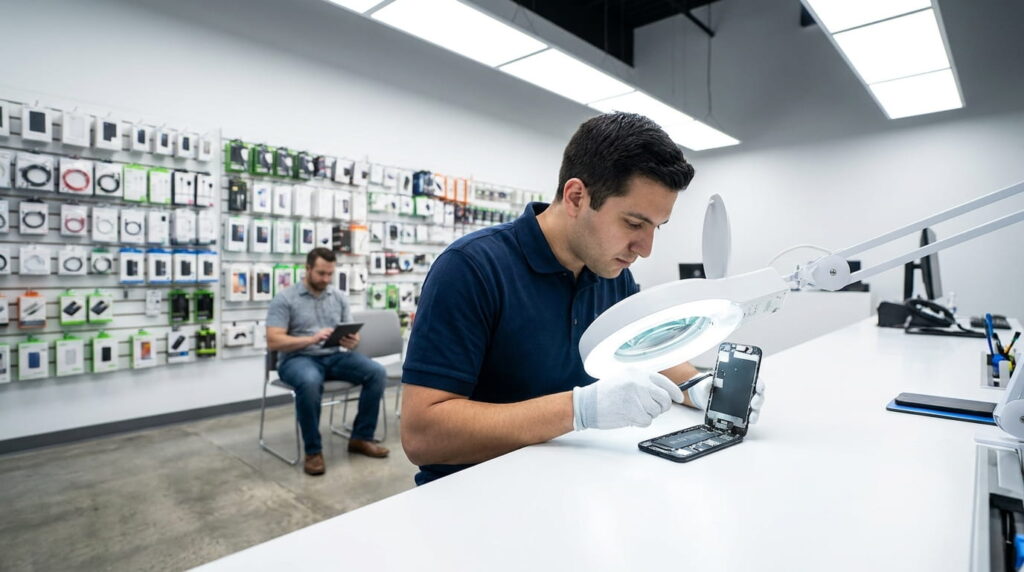
If you’ve run through the self-checks and you’re still not sure what’s going on, it’s time to get a second opinion.
You’ve got two general paths here. One is free and software-based. The other costs money but gets a physical set of eyes on your device.
I’d start with the free scans — they take minutes and cost nothing. If those come back clean and the flicker persists, a paid diagnostic at a retail location is worth the money, typically running somewhere between $0 and $50 depending on where you live in the US.
Below, I’ll break down exactly when each option makes sense, plus how to know whether an app-based scan is enough or you need a certified technician looking at the hardware directly.
Free Malware Scans vs. Paid Diagnostic Visits at Best Buy’s Geek Squad or Samsung Experience Stores
Here’s how I’d break down the two options if a reader asked me directly.
Free option — Samsung Device Care / Google Play Protect:
- Cost: $0
- Thoroughness: Catches the vast majority of common malware and adware
- Turnaround: Under a minute, right from your phone
Paid option — Geek Squad or Samsung Experience Store visit:
- Cost: Typically $0 to $50 for diagnostic-only, depending on location
- Thoroughness: Includes a physical inspection of the display, connectors, and battery health
- Turnaround: Usually same-day, sometimes with a short wait for walk-ins
My honest take, after covering the US tech market for years: skip the paid visit until you’ve run the free scan and the Safe Mode test first. Save that diagnostic fee for when you genuinely suspect hardware failure, not just because the screen flickered once.
If you do need a hands-on look, Best Buy’s Geek Squad locations are everywhere and don’t require an appointment for basic diagnostics. For anything under active warranty, Samsung’s own Experience Stores are usually the better first stop.
When to Trust an App-Based Security Scan vs. a Certified Technician
Here’s the decision checklist I give readers who ask me this exact question.
Trust the app-based scan when:
- Your symptoms are purely behavioral — pop-ups, battery drain, unfamiliar apps
- Removing the suspicious app makes the issue disappear
- Your screen behaves normally once malware is gone
Escalate to a certified technician when:
- The flicker persists even in Safe Mode
- A security scan comes back completely clean
- The glitching started right after a drop, water exposure, or a specific software update
That second list is your green light for hardware territory. Once you’ve ruled out software, you’re no longer troubleshooting — you’re diagnosing a hardware vs software screen issue, and that needs someone with actual diagnostic tools, not another scan app.
I’ve seen readers waste weeks running scan after scan on a phone that clearly had a failing display connector. Don’t be that person. If Safe Mode doesn’t fix it, book the appointment.
Mistakes Users Make When Chasing a “Virus” Theory
Panic makes people act fast, and fast decisions here tend to cost money for nothing.
I’ve watched this play out with US readers more times than I can count. Someone convinces themselves it’s a virus, then makes one of two moves that actually make things worse.
The first is jumping straight to a factory reset before confirming anything. The second is downloading a random “cleaner” app to “fix” the problem, which often introduces the exact threat they were trying to avoid.
Both mistakes come from the same place: wanting a fast fix instead of a correct one. Here’s why each one backfires, and what to do instead.
Wiping Data or Factory Resetting Before Ruling Out Hardware
Here’s the hard truth: a factory reset does absolutely nothing for a hardware-level flicker. If your digitizer is loose or your panel is failing, you’ll wipe every photo, app, and setting for zero improvement.
I’ve talked to readers who reset their phone twice before realizing the screen was damaged internally from a drop. That’s data gone for nothing, twice.
The right sequence is simple. Run the Safe Mode test first. If the flicker persists there, hardware is the culprit and a reset won’t help at all.
Only if the issue turns out to be software should you consider resetting, and even then, back everything up first using Samsung Smart Switch so you’re not starting from zero. Skip that step and you’re just gambling with your own photos and data.
Downloading Unverified “Cleaner” Apps That Introduce Real Threats
Here’s the irony nobody warns you about: a lot of “virus removal” and “phone booster” apps are themselves the malware.
They show up promising to fix your battery, speed up your phone, or clean out junk files. What they actually do is request sweeping accessibility permissions under that friendly disguise, then do the exact opposite of what they promised.
I’ve reviewed enough of these apps over the years to notice the pattern immediately. Flashy icon, vague five-star reviews, and permission requests that have nothing to do with “cleaning” anything.
Stick to what’s already on your phone. Google Play Protect and Samsung’s built-in Device Care cover the vast majority of real threats without asking for anything suspicious.
Skip the third-party cleaner apps entirely. In years of covering the US mobile market, I’ve never once recommended one, and this isn’t the article where that changes.
FAQs
Does screen flickering mean my Galaxy phone has a virus?
No. Flickering is almost always tied to AMOLED hardware issues, a bad display driver, or GPU throttling — not malware. Viruses simply don’t have direct access to your display hardware, so a real infection wouldn’t produce this exact symptom on its own.
Can a virus actually cause my Samsung screen to flicker?
Not directly. A malicious app can alter software settings like brightness or refresh rate if it gains unusual permissions, but it can’t physically distort your AMOLED panel. True flickering points to a hardware or driver problem nearly every time.
Can a virus see what’s on my phone screen without permission?
Rarely, but yes. Certain stalkerware apps with accessibility or screen-recording permissions can monitor activity. Check Settings > Apps > Special Access occasionally and remove anything unfamiliar to catch this early before it becomes a bigger privacy issue.
Can a virus be the reason my phone screen is glitching?
It’s possible in behavior-driven ways, like forced pop-ups mimicking a glitch, but a true visual glitch or flicker points to hardware nearly every time. Running a Safe Mode test is the fastest way to confirm which one you’re dealing with.
What are signs my Galaxy phone has malware instead of a screen defect?
Look for battery drain, unexpected pop-ups, overheating while idle, and unfamiliar installed apps. If those symptoms show up without any drop or water exposure in the phone’s history, malware is a far more likely explanation than a hardware defect.
Bottom Line: When to Blame Malware and When to Blame the Display
If your Galaxy screen is flickering with nothing else going on, put your money on hardware. A loose connector, an aging AMOLED panel, or a buggy display driver update are the far more likely culprits than anything malicious.
If you’re also seeing battery drain, random pop-ups, or overheating while the phone just sits there, run a malware scan first. That combination changes the picture entirely.
The Safe Mode test settles this in under two minutes for most people, and it costs nothing. Run it before you spend a dollar on repairs or download a single “cleaner” app.
why your phone gets laggy after updates walks through the exact repair steps once you know which category you’re actually dealing with.
Have a question about Galaxy screen flickering we didn’t cover here? Drop it in the comments below.
Written and verified by Tekzyro’s mobile engineering staff. All product benchmarks, thermal diagnostics, and operating system troubleshooting steps undergo hands-on device verification in compliance with our Editorial Standards and Privacy Directives.
Final Thoughts from the Author: Every article I publish goes through a personal review process. If you spot any inaccuracy, I genuinely want to know about it.
Questions or feedback? Contact our team. Learn more about our review process on our About Us page.