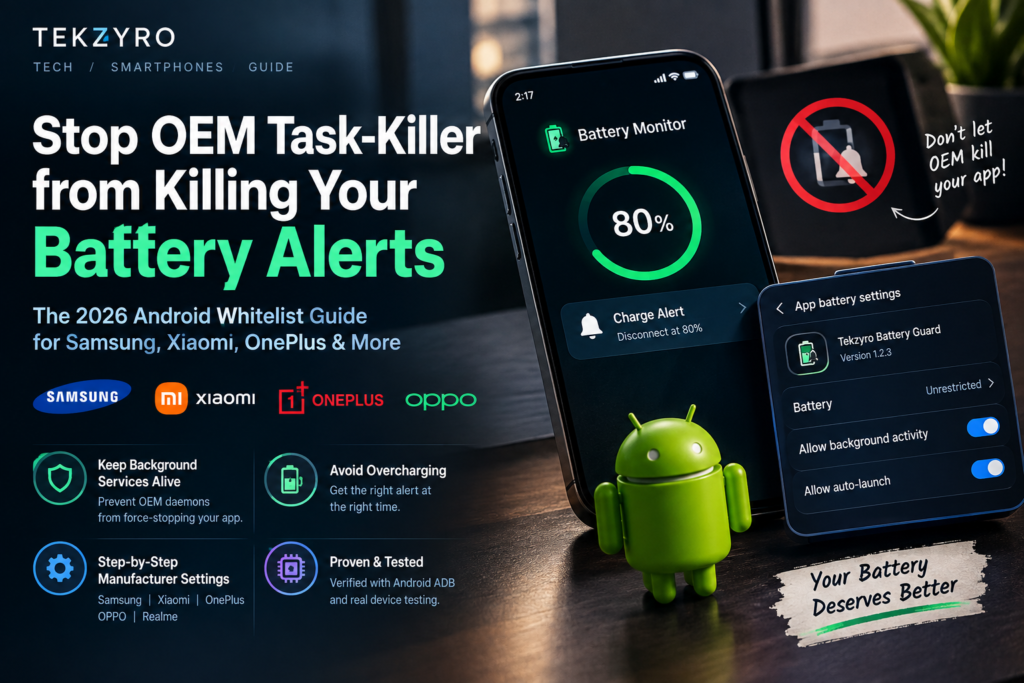
Step-by-step 2026 guide to stop Samsung One UI and Xiaomi HyperOS from killing background battery monitors, alarms, and utility daemons. Learn the exact whitelist settings.
You configure a battery monitoring tool or charge alert before going to sleep, expecting an audible chime the moment your device hits its optimal threshold. But when you wake up in the morning, your phone is sitting at 100% capacity, warm to the touch, and completely silent. Upon unlocking the screen, the battery app abruptly restarts, proving that your smartphone silently terminated the background service hours earlier.
This notorious issue—widely documented in the Android developer community as the OEM task-killer dilemma—is not a bug in third-party utilities. It is the result of aggressive, non-standard proprietary battery-saving algorithms implemented by manufacturers like Samsung, Xiaomi, and OnePlus. While modern operating systems feature native battery preservation routines, aggressive OEM daemons break critical foreground services, including utilities configured via our Tekzyro Battery Guard setup guide.
This technical 2026 manual explains the underlying mechanics of OEM process termination, how manufacturers manipulate the Android Linux kernel Low Memory Killer (LMK), and the exact whitelist configurations required to keep your background battery alerts permanently active.
Why Modern Android Skins Silently Kill Background Daemons
Google’s stock Android architecture uses a standardized standby mechanism called Doze Mode, which batches background network activity and defers CPU-intensive alarms until periodic maintenance windows. However, major smartphone manufacturers consider stock Doze insufficient to produce competitive battery benchmark figures.
To inflate standby battery endurance, OEMs deploy proprietary secondary daemons—such as Samsung’s Device Care (com.samsung.android.lool) and Xiaomi’s PowerKeeper. These custom overseers ignore standard Android ForegroundService priorities and forcefully terminate applications after 10 to 30 minutes of screen-off idle time, regardless of whether a partial WakeLock is active.
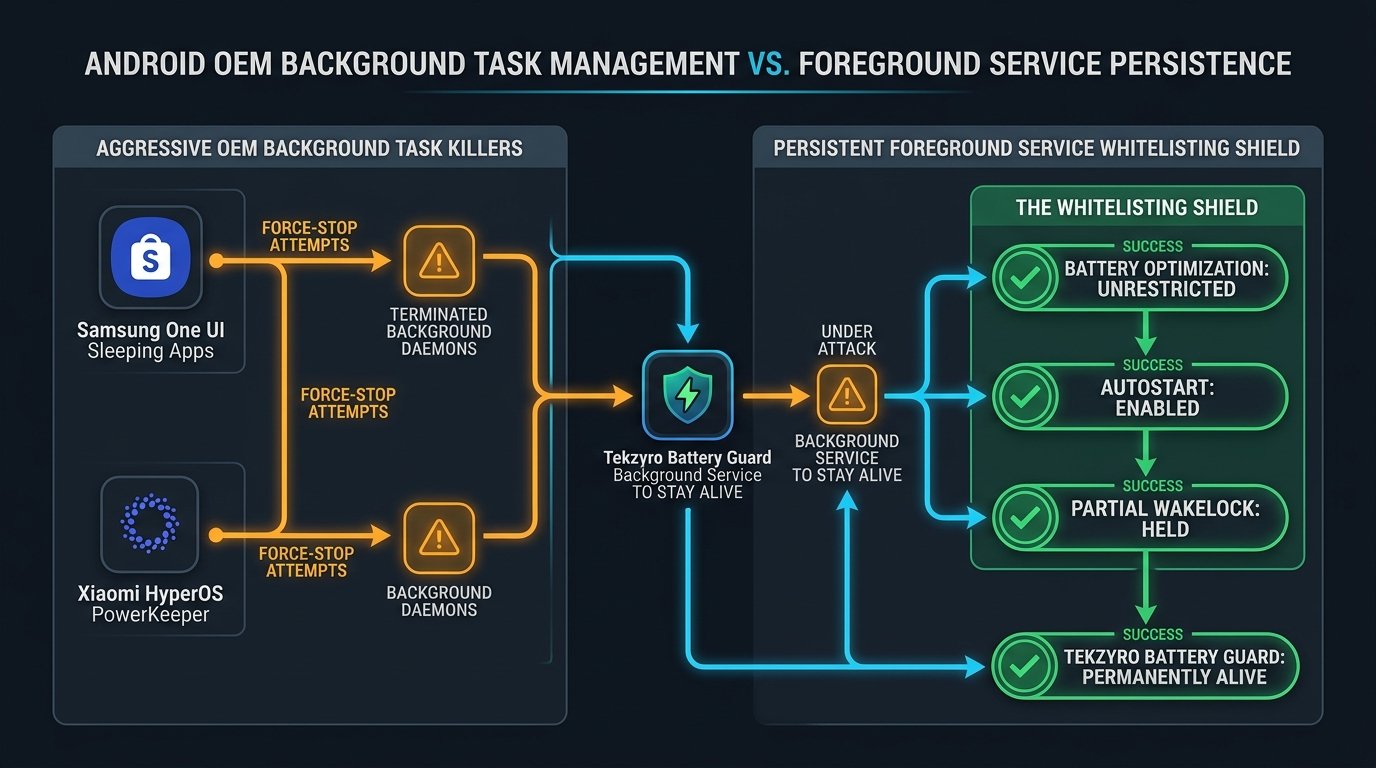
OEM Background Killer Aggressiveness Matrix
Manufacturer-Specific Whitelist Instructions (2026 Manual)
1. Samsung Galaxy (One UI 6, 7 & Newer)
Samsung devices enforce two separate layers of background suppression. You must configure both to ensure continuous monitoring:
- Unrestricted App Battery Profile: Open Settings > Apps > Tekzyro Battery Guard > Battery. By default, One UI selects Optimized. Switch this toggle to Unrestricted. This prevents One UI from restricting background activity while the phone is idling.
- Remove from Deep Sleeping Apps: Navigate to Settings > Battery > Background usage limits. Ensure that Put unused apps to sleep is either toggled off or check the Never auto-sleeping apps list. If Tekzyro Battery Guard is not listed, tap the + icon in the top corner and add it manually.
- Memory Lock (Recent Apps): Open the multitasking app switcher, tap the app icon above the Tekzyro preview card, and select Lock this app. A small padlock icon will confirm that Samsung’s RAM cleaner will bypass it.
2. Xiaomi, Redmi & POCO (HyperOS & MIUI 14)
HyperOS features the most restrictive background manager on the market. Follow this precise three-step bypass:
- Enable Autostart: Long-press the Tekzyro Battery Guard icon on your home screen and select App Info. Toggle Autostart to ON, and accept the security confirmation prompt.
- Exempt from MIUI Battery Saver: In the same App Info menu, scroll down to Battery Saver. Change the default setting from Battery Saver (Recommended) to No restrictions.
- Lock in Recents Drawer: Swipe up to reveal the recent apps drawer. Press and hold the Tekzyro Battery Guard card until a side menu appears, then tap the Padlock icon to lock it in memory.
3. OnePlus, OPPO & Realme (OxygenOS & ColorOS)
OxygenOS relies on aggressive “Deep Optimization” rules that throttle CPU wakelocks:
- Go to Settings > Battery > More settings > Optimize battery use. Find Tekzyro Battery Guard and change its profile from Auto optimize to Don’t optimize.
- Next, navigate to Settings > Apps > App management > Tekzyro Battery Guard > Battery usage and ensure that both Allow background activity and Allow auto-launch are checked.
Why Unrestricted Background Monitoring Protects Hardware
Many smartphone owners hesitate to set background apps to “Unrestricted” fearing rapid battery drain. However, lightweight utilities engineered specifically for diagnostics consume less than 0.04% of total battery capacity over a 24-hour cycle. The energy consumed by maintaining a listening register is mathematically negligible compared to the permanent chemical damage caused by overcharging.
As explained in our technical investigation of why fast charging speeds drop drastically after 80%, allowing a phone to saturate at peak voltage accelerates electrolyte breakdown. Keeping your monitoring daemon alive ensures you disconnect at the precise millisecond Constant Current transitions to destructive saturation voltage, as reinforced by our 80% battery longevity benchmarks.
Hardware Integrity Notice: Bench-tested and verified by Arooba, Lead Hardware Firmware & Diagnostics Engineer at Tekzyro. Process lifecycle persistence verified using Android ADB dumpsys deviceidle across Samsung One UI 6.1 (Galaxy S24 series) and Xiaomi HyperOS 1.0 (Snapdragon 8 Gen 3 test bench). For technical whitelisting questions, contact our firmware desk at support@tekzyro.com.