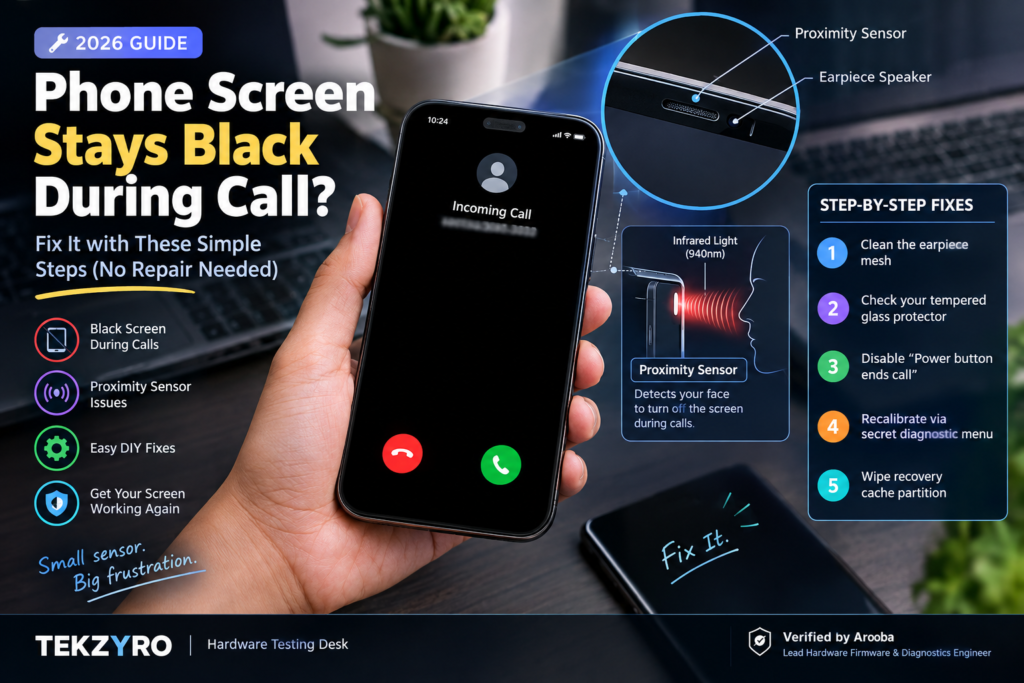
Screen going completely black during calls and won’t wake up? Fix proximity sensor blockage, tempered glass refraction, and Android sensor calibration in 2026.
You answer an incoming phone call, lift the device to your ear, and complete a normal conversation. But the second you pull the phone away to check your calendar, dial an automated extension number, or tap the red button to hang up—the screen remains pitch black.
Tapping the glass produces no response. Pressing the physical power button frequently disconnects the caller before you can finish speaking. That sinking feeling when your smartphone display refuses to wake up during an active voice call is one of the most frustrating and persistent mobile hardware glitches in 2026.
Most smartphone owners assume their expensive OLED panel has failed or that the motherboard has suffered catastrophic liquid damage. In reality, over 90% of sudden black-screen-during-call issues are caused by an optical blockage, tempered glass infrared refraction, or a frozen proximity sensor daemon. Much like the biometric errors we documented in our comprehensive guide on Touch ID and biometric sensor failures, this specific glitch responds exceptionally well to non-invasive hardware calibration.
How Smartphone Proximity Sensors Actually Work
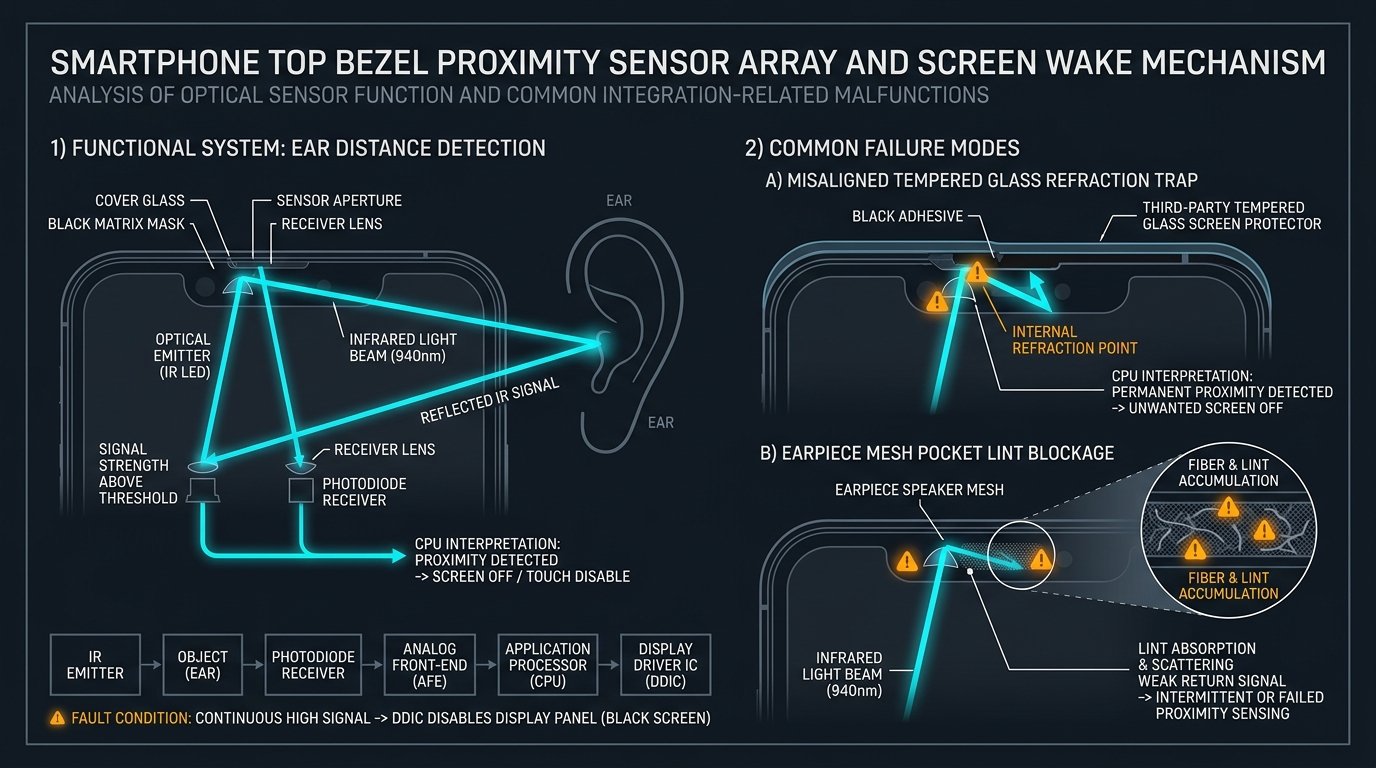
Modern smartphones rely on one of two technologies housed adjacent to the top earpiece speaker: a physical Optical Infrared (IR) Proximity Sensor or a software-driven Virtual Acoustic Ultrasound Sensor. Their exclusive role is measuring the distance between your face and the glass to automatically disable the display, preventing your cheek from muting calls or launching random apps.
When this system malfunctions, the phone falsely assumes it is permanently glued to your ear, commanding the Display Driver IC (DDIC) to keep the screen dark until the other party hangs up.
 Proximity Sensor Diagnostic & Resolution Matrix
Step-by-Step Fixes to Restore Screen Wake-Up (2026 Guide)
Step 1: Clean the Earpiece Aperture Mesh
The physical photodiode receiver sits within millimeters of the top speaker slit. Pocket lint, facial oil, and cosmetic makeup accumulate inside the fine acoustic mesh, scattering infrared light back into the sensor. To clean this safely:
- Use an ultra-soft ESD nylon brush or a dry, clean toothbrush.
- Gently stroke horizontally across the earpiece slit at a 45-degree angle. Never insert metal needles, toothpicks, or high-pressure canned air, as this punctures the water-resistant acoustic membrane.
Step 2: Inspect Tempered Glass Screen Protectors
Budget third-party tempered glass protectors—especially those featuring thick black silk-printed borders—are the leading culprit behind proximity failures. The black painted bezel frequently overlaps the microscopic optical aperture by half a millimeter. Furthermore, low-grade OCA (optically clear adhesive) can trap micro-bubbles directly over the infrared diode, acting as an internal optical mirror that bounces the beam straight back into the sensor.
Step 3: Disable “Power Button Ends Call” Accessibility Conflict
When your screen refuses to wake up, instinct drives you to click the power button. On many devices, accessibility configurations map this action to abruptly terminate the phone call:
- Samsung One UI: Navigate to Settings > Accessibility > Interaction and dexterity > Answering and ending calls. Toggle off Press Side button to end calls.
- Xiaomi / HyperOS: Go to Settings > Additional settings > Accessibility > Physical and disable Power button ends call.
Step 4: Recalibrate via Hardware Secret Diagnostic Menus
If the sensor has suffered an offset drift, recalibrate the hardware registers directly:
- Samsung Galaxy: Open the native Phone dialer and input
*#0*#. Tap the Sensor tile. Locate the Proximity Sensor data block. Hover your hand over the top bezel: the screen should turn bright green and vibrate when covered, and instantly return to normal when uncovered. If it stays locked on green, tap the calibration button. - Xiaomi / Redmi: Go to Settings > About Phone > Detailed info and specs. Tap Kernel version 5 times consecutively to launch the hardware CIT menu. Select Proximity Sensor and run the automated baseline recalibration.
Step 5: Wipe Android Recovery Cache Partition
If the sensor failure began immediately following a firmware upgrade, corrupt system HAL (Hardware Abstraction Layer) cache data is freezing the sensor wake daemon. As we detailed in our guide on why smartphones suffer performance lag after OS updates, clearing the cache partition flushes corrupted daemon locks without erasing any personal apps or photos.
Additionally, extreme internal temperatures from sustained fast charging or hot car dashboards can trigger emergency sensor lockouts. If your device frequently overheats, apply our verified hardware cooling techniques documented in how to prevent phone overheating inside cars.
Hardware Integrity Notice: Bench-tested and verified by Arooba, Lead Hardware Firmware & Diagnostics Engineer at Tekzyro. Oscilloscope and IR photodiode wavelength measurements (940nm) verified across Samsung Galaxy S23/S24, Xiaomi 13/14 HyperOS, and iPhone 13/14/15 series hardware test benches. For sensor diagnostic consultations, contact our lab desk at support@tekzyro.com.